Unlock Seamless Peer-to-Peer Syncing with Syncthing


In our increasingly connected digital lives, being able to keep files in-sync across multiple computers (and even mobile devices) has become essential. For many, cloud-based services like Dropbox, Google Drive or OneDrive get the job done—but what happens when you want full control, no third-party storage, no hidden fees, and truly peer-to-peer syncing? That’s where Syncthing shines.
Here’s a deep dive into what it offers, why it matters, and how you (yes, you) can start using it today.
What is Syncthing?
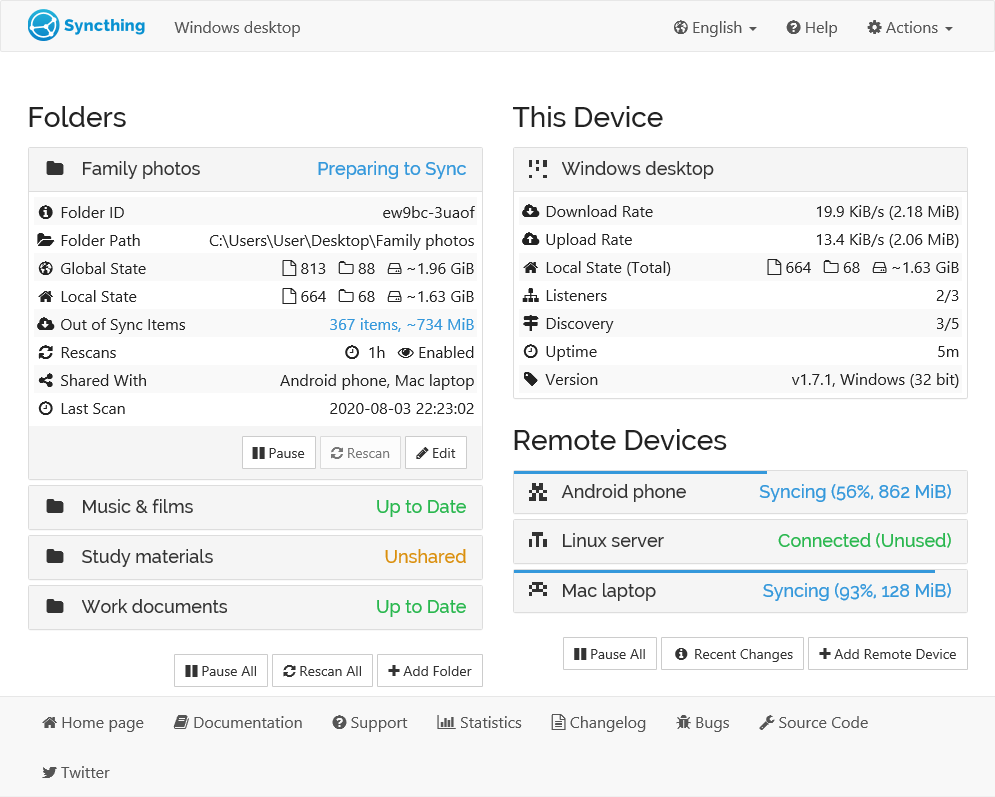
- Syncthing is a free, open-source, cross-platform tool that allows continuous file synchronization between two or more devices—whether on the same local network (LAN) or across the internet.
- Unlike typical cloud services, Syncthing does not rely on a central server storing your data. Instead the data stays on your devices, and syncing is done via a peer-to-peer architecture.
- Built with a focus on security, simplicity and user control, it’s designed for individuals who want to own their data and define where it lives.
Why Use Syncthing? Key Benefits
Here are the standout advantages of choosing Syncthing for syncing your files:
Privacy & Ownership
With Syncthing, you decide where your data resides. No opaque cloud service “holding” your files in an unknown jurisdiction. This is the essence of “your data is your data alone”.
Every device has a cryptographic identity/certificate; only explicitly approved devices can sync with each other. Communications are encrypted (TLS + Perfect Forward Secrecy) to prevent eavesdropping.
Full Control, No Lock-In
You’re not forced into “store everything in this special folder” or pay for storage tiers. If you have the hardware, you have the sync-space. One user put it nicely:
“Syncthing is everything I used to love about computers.”
You don’t need accounts, email sign-ups, proprietary web dashboards, or forced upgrades.
Works Over LAN and Internet
Syncthing discovers devices on a LAN and also supports internet syncing (even when behind NATs) via relay or direct peer connections.
That means you can keep a laptop and a home server in sync, or sync machines in different networks, without relying on a giant third-party cloud.
Open Source & Transparent
The code is publicly available on GitHub, licensed under MPL-2.0.
This means you (or anyone) can inspect the code, compile it yourself, and trust there are no “mystery backend services” sending your data elsewhere.
Real-World Use Cases
Here are a few ways you might deploy Syncthing in your personal or professional setup:
- Syncing your work laptop and home desktop: Keep project folders consistent across both machines.
- Backing up files to a home server: Use Syncthing to mirror important folders to a NAS or server you control.
- Collaborating with others (peer folders): While it’s not primarily a “share publicly with thousands” platform, you can share folders with other trusted devices.
- Maintaining a “private cloud”: If you dislike commercial cloud services, you can build your own sync mesh of devices you own and control.
How to Get Started
Great news: setting up Syncthing is relatively straightforward. Here’s a bare-bones primer:
- Download & Install
Grab the appropriate version for your operating system. (For Windows users you might use the setup at: https://github.com/Bill-Stewart/SyncthingWindowsSetup/releases/tag/v2.0.0) - Run the application
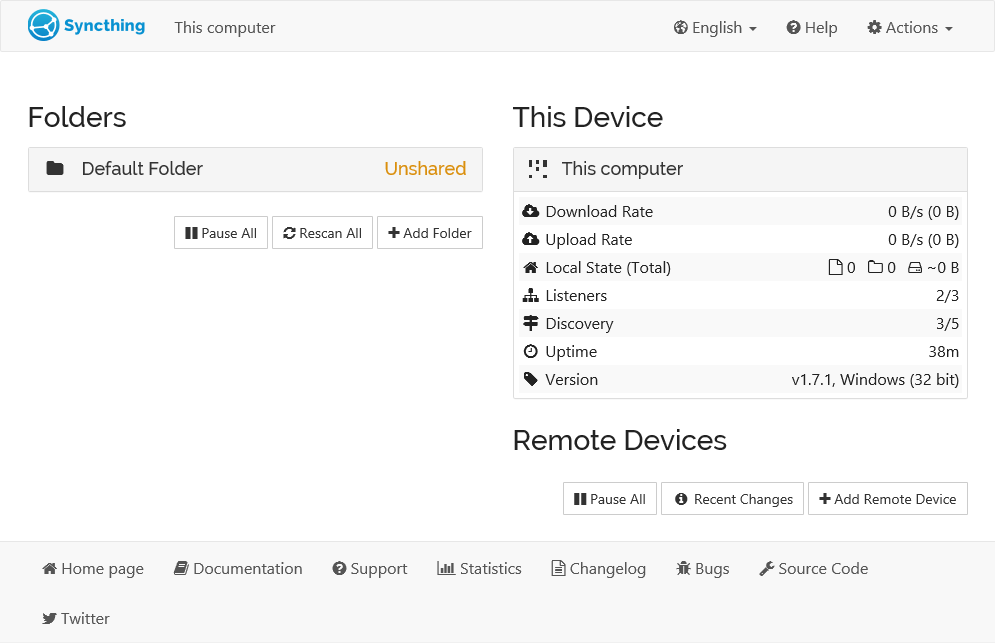
On many systems including Windows and Linux, you can start Syncthing and it will launch a local web interface (by default athttp://127.0.0.1:8384). - Add another device
On each device you want to sync, you’ll get a unique Device ID. Exchange and approve them between devices. - Create or share a folder
Choose which folder(s) you want to sync, define which devices are allowed, and you’re off. - Let it sync
The devices will discover each other (over LAN or internet), establish an encrypted connection, and sync the folder contents. - Explore settings (optional)
You can fine-tune things: versioning (keep older file versions), ignore patterns (.stignore), send-only or receive-only folders, etc.
Things to Keep in Mind & Best Practices
While Syncthing is powerful, it's not a silver-bullet for every scenario. A few caveats and tips:
- It isn’t primarily a “cloud drive with web access and public links” like Dropbox or Google Drive. It’s about device-to-device syncing. Some users prefer other solutions for sharing publicly.
- At least one device ideally needs to be online when you want syncing to happen—if all devices are turned off, sync obviously won’t happen.
- For large folders and many small files, initial sync may take some time.
- If devices are behind strict corporate firewalls/NATs, you may need to configure relay settings or port forwarding.
- Always approve only trusted devices since sync means full access to the folder unless you restrict it.
- Make backups: Syncing is great, but if you delete a file accidentally, it can propagate—combining versioning with periodic backups is wise.
Why It’s Especially Relevant for You
As an IT support professional (and someone building out interesting infrastructure like digital signage servers), you have perhaps unique needs: you may manage multiple machines, sensitive data, and want solutions you can trust and control. Syncthing fits that mindset perfectly:
- Because you understand infrastructure, you’ll appreciate how it runs locally, bypasses vendor lock-in and gives you visibility.
- You likely have devices dispersed (office machine, home machine, maybe a server) and want them in sync without relying on a third-party cloud.
- Open source aligns with your preference for control, transparency, and customization (rather than opaque vendor solutions).
Final Thoughts
If you’re seeking a real-world, robust, peer-to-peer file syncing tool that gives you back control of your data, Syncthing is hard to beat. It strips away the marketing fluff, the vendor lock-in, the hidden costs—and gives you exactly what you need: reliable syncing between your devices, securely and transparently.
So go ahead: install it, connect two or more machines, pick a folder that matters to you (documents, photos, a project folder) and watch it sync automatically. You might just find you’ve reclaimed your data and simplified your workflow.
Thank you so much for taking the time to read my blog post! Your support and engagement truly mean a lot and inspire me to keep creating and sharing more valuable content. If you enjoyed this post, I’d love to hear your thoughts—feel free to leave a comment in the box below and join the conversation. And if you’d like to stay updated with the latest posts, tips, and insights, don’t forget to subscribe to my newsletter. By joining, you’ll be the first to know when new content is published, so you never miss an update.
National team shirts can hold memories of tournaments, cities, and shared celebrations because matchday clothing can express loyalty without needing many words. Conversations about third kit design help supporters choose between a modern look and a more nostalgic style. For supporters comparing different designs, how to choose a Borussia Dortmund football shirt remains one way to link football history with the practical choice of a shirt. When classic designs return, the design becomes part of how football culture is remembered.