How to Install Windows on a Raspberry Pi

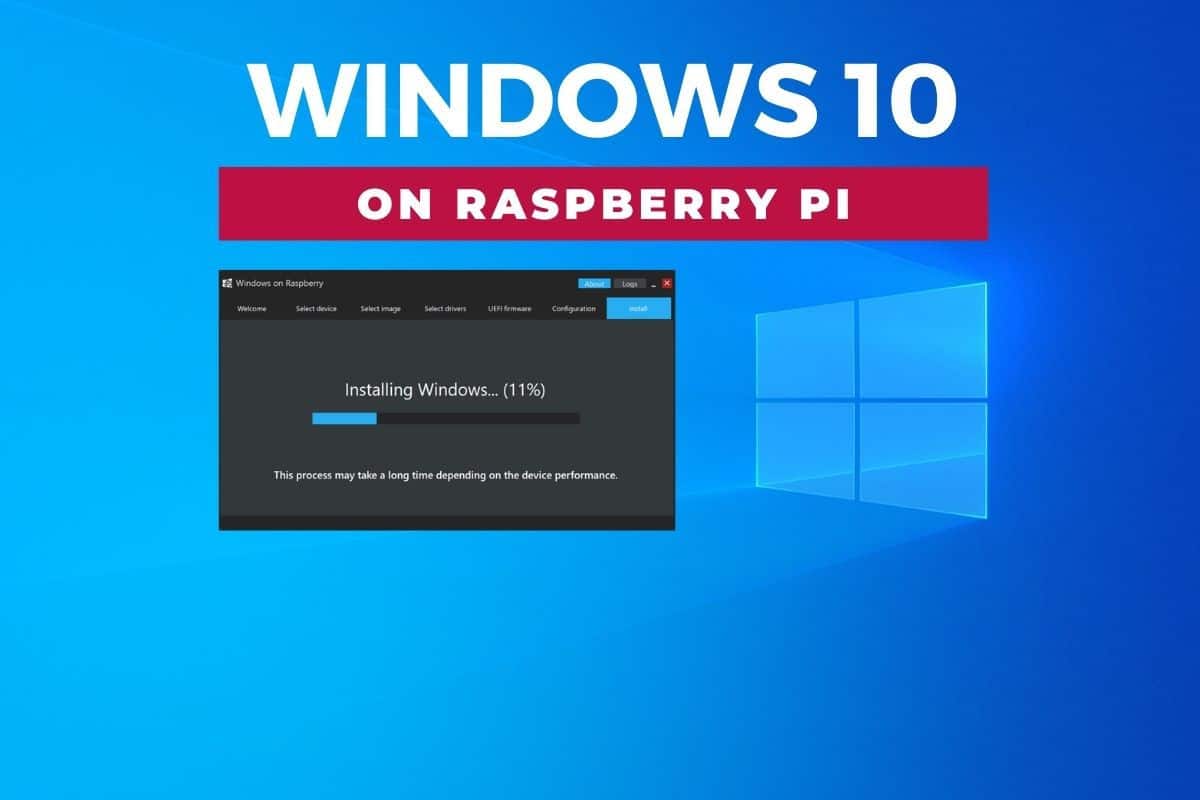
I am a real fan of Raspberry Pi, and over the years I’ve used it for countless projects—servers, smart home controllers, even media centers. But one question I kept coming back to was: Can you actually run Windows on a Raspberry Pi? The answer is yes! And today, I’ll show you how to do it.
There are two main ways to get Windows on a Raspberry Pi:
- Windows 10 IoT Core – Microsoft’s lightweight OS for IoT projects.
- Windows 10/11 ARM – The full Windows desktop experience (with some limitations).
Raspberry Pi is a tiny but powerful single-board computer, widely loved for running Linux-based distributions like Raspberry Pi OS. But what if you want to run Windows on your Raspberry Pi? Yes, it’s possible! You can install Windows 10 IoT Core (a lightweight version for developers) or even experiment with Windows 10/11 ARM editions for a more desktop-like experience.
In this blog, I’ll walk you through the process of installing Windows on your Raspberry Pi.
What You’ll Need
- A Raspberry Pi 3, 3B+, or 4 (Pi 4 recommended).
- A microSD card (at least 16GB, Class 10 or higher).
- A Windows PC to prepare the installation.
- A USB keyboard, mouse, HDMI display.
- A stable internet connection.
Option 1: Installing Windows 10 IoT Core
Windows 10 IoT Core is Microsoft’s official version of Windows for Raspberry Pi. It’s not a full desktop OS—it’s more for developers who want to build IoT apps.
Steps:
- Download the IoT Dashboard
- Get it from Microsoft: Windows 10 IoT Dashboard.
- Set Up Your Device
- Open the dashboard → Select Set up a new device.
- Choose your Raspberry Pi model and insert your microSD card.
- Configure Settings
- Set a device name, password, and Wi-Fi (if needed).
- Flash the SD Card
- The dashboard will install Windows IoT Core on the card.
- Boot Up
- Insert the card into your Pi, power it up, and you’ll see the IoT Core interface.
This is great for experiments but not for everyday desktop use.
Option 2: Installing Windows 10/11 ARM with WoR
If you want the real Windows desktop experience, you’ll need WoR (Windows on Raspberry), a community project that installs Windows ARM on Raspberry Pi.
⚠️ Heads up: Performance is slower than Linux, and not all apps/drivers work.
Steps:
- Download WoR
- Visit WoR Project.
- Get a Windows ARM Image
- Use UUP dump to download Windows 10/11 ARM ISO.
- Prepare the Storage
- Run WoR on your PC → Select your SD card or SSD as the target.
- Choose the Windows ARM image you downloaded.
- Install Drivers
- WoR automatically downloads Raspberry Pi drivers.
- Flash & Boot
- Once done, insert the card/SSD into your Pi and boot.
- Windows setup will begin.
- Finish Setup
- Select language, Wi-Fi, Microsoft account, and you’re good to go!
Performance & Limitations
- Windows IoT Core: Fast and light, but not a real desktop.
- Windows 10/11 ARM: Full desktop Windows, but slower than Linux.
- Best experience is with a Raspberry Pi 4 (4GB or 8GB) and an SSD for storage.
 Sudeep Shrestha
Final Thoughts
Running Windows on a Raspberry Pi isn’t always practical, but it’s a lot of fun and shows just how versatile these little boards are. If you’re into tinkering and experimenting like me, give it a try. For serious projects, Raspberry Pi OS or Linux distros will still give you better performance.
Thank you so much for taking the time to read my blog post! Your support and engagement truly mean a lot and inspire me to keep creating and sharing more valuable content. If you enjoyed this post, I’d love to hear your thoughts—feel free to leave a comment in the box below and join the conversation. And if you’d like to stay updated with the latest posts, tips, and insights, don’t forget to subscribe to my newsletter. By joining, you’ll be the first to know when new content is published, so you never miss an update.