How Do I Find My Windows BitLocker Recovery Key?


If you’ve ever turned on your computer and suddenly seen a BitLocker recovery screen, it can feel like a nightmare. This usually means something on your system has changed—maybe your hard drive/SSD was swapped, or secure boot settings in your BIOS were altered.
But don’t panic just yet! Let’s walk through what BitLocker is, why it asks for a recovery key, and most importantly, how you can retrieve it.
Why Is Windows Asking for My BitLocker Recovery Key?
BitLocker is a Windows feature that encrypts your drive to protect your data from unauthorized access. If someone tries to tamper with your hardware, firmware, or even certain software settings, BitLocker will treat it as a potential threat and lock your drive.
To make sure your data stays safe, Windows will then ask you for the BitLocker recovery key before letting the system boot.
In short:
- Normal use? You won’t notice BitLocker.
- Suspicious changes? Windows demands the recovery key as an extra layer of security.
Why Saving Your Recovery Key Is Crucial
If you didn’t save your BitLocker recovery key when you set it up, unfortunately, there’s no magic trick—it’s essentially game over for accessing that encrypted data.
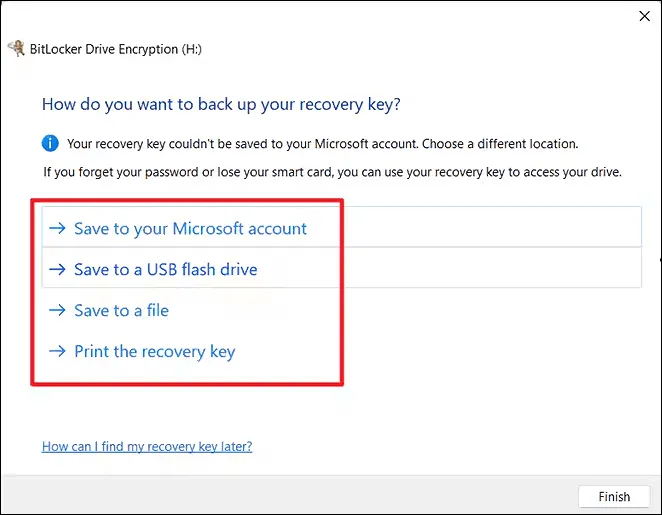
When BitLocker is first enabled, Windows gives you a few options to back up your recovery key:
- Save it to a USB flash drive
- Save it to a file on another computer or drive
- Print the key on paper
- Save it to your Microsoft account (the best option for personal users)
I highly recommend always saving your recovery key to your Microsoft account. That way, if you’re ever locked out, you can easily recover it online.
How to Recover Your BitLocker Key
1. If You Use a Microsoft Account (Most Home Users)

- Go to the Microsoft BitLocker Recovery Keys page.
- Sign in with the Microsoft account linked to your PC.
- Find the device that’s asking for the recovery key.
- On your BitLocker recovery screen, note the Key ID.
- Match the Key ID on Microsoft’s site with the one shown on your computer.
- Click Show recovery key to reveal the 48-digit code.
- Enter that code on your PC to unlock it.
2. If You Use a Local Account
If you set up BitLocker without a Microsoft account, your recovery key might be saved directly on your PC. To check:
- Open PowerShell as Administrator.
- Type:Get-BitLockerVolume
- Look for the KeyProtector section—it may show the recovery key or help you identify where it was stored.
3. If You Use a Work or School Account
For corporate or school devices, your IT department usually manages BitLocker keys.
- Go to the Microsoft BitLocker Recovery Keys page.
- Sign in with your work or school account.
- Select Devices → expand the one you’re using.
- Choose View BitLocker Keys.
- Match the Key ID from your computer to the one listed, then use the recovery key provided.
Final Thoughts
BitLocker is a powerful tool to keep your data safe, but that safety net comes with responsibility. Without your recovery key, access to your encrypted drive is nearly impossible.
Pro Tip: Always save your BitLocker recovery key to your Microsoft account or another secure location you can easily access in the future.
Because when Windows asks for it, you’ll want to be ready.
Thank you so much for taking the time to read my blog! Your support and engagement truly mean a lot and inspire me to keep creating and sharing more valuable content. If you enjoyed this post, I’d love to hear your thoughts—feel free to leave a comment in the box below and join the conversation. And if you’d like to stay updated with the latest posts, tips, and insights, don’t forget to subscribe to my newsletter. By joining, you’ll be the first to know when new content is published, so you never miss an update.