Give Your Old Laptop a New Life with ChromeOS Flex.

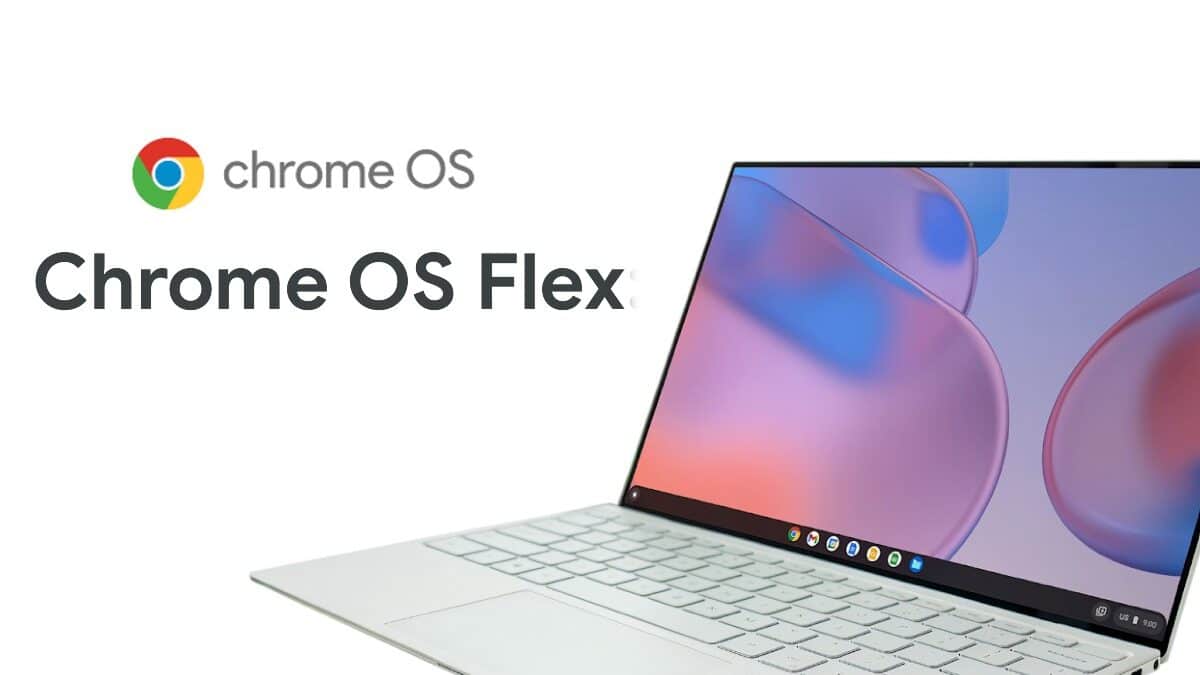
If you have an old laptop or desktop lying around, chances are it feels slow, outdated, or struggles to keep up with modern apps. Instead of tossing it away, you can breathe new life into it with ChromeOS Flex — a lightweight operating system by Google.
What is ChromeOS Flex?
ChromeOS Flex is Google’s free, cloud-first operating system designed to run on almost any PC or Mac. Unlike traditional ChromeOS that comes pre-installed on Chromebooks, ChromeOS Flex can be installed on older laptops and desktops, giving them a second life. It’s built for speed, security, and simplicity.
ChromeOS Flex vs. Windows
- Performance: While Windows tends to slow down on older hardware due to heavy system requirements, ChromeOS Flex is lightweight and optimized to run fast even on older machines.
- Apps: Windows supports thousands of legacy apps, while ChromeOS Flex is cloud-focused, running mainly web-based apps from the Chrome browser and Google Play (depending on the build).
- Updates & Security: ChromeOS Flex gets automatic updates from Google, making it more secure out-of-the-box compared to a Windows machine that may require third-party antivirus.
- Use Case: If you need a simple machine for browsing, streaming, documents, and online apps, ChromeOS Flex is ideal. For gaming or software that requires Windows, it might not be a replacement.
In short: Windows = versatility. ChromeOS Flex = simplicity and speed on old hardware.
How to Install ChromeOS Flex on Your Old Laptop or Desktop
Installing ChromeOS Flex is straightforward. All you need is a USB drive and an internet connection.

Step 1: Prepare a USB Installer
- On a working computer, download the Chromebook Recovery Utility extension from the Chrome Web Store.
- Open the extension and select ChromeOS Flex as the operating system.
- Insert an 8GB (or larger) USB drive.
- Follow the steps to create a bootable ChromeOS Flex installer.
Step 2: Boot from USB on Your Old Laptop/Desktop
- Insert the USB drive into the old computer.
- Restart the computer and enter the boot menu (usually by pressing F12, F9, or Esc, depending on the manufacturer).
- Select the USB drive to boot from.
Step 3: Try or Install ChromeOS Flex
- You’ll first get the option to Try it without installing. This allows you to test ChromeOS Flex before committing.
- If you’re happy with the performance, click Install ChromeOS Flex.
- ⚠️ Warning: Installing will erase everything on the hard drive, so back up your files first.
Step 4: Complete Setup
- Connect to Wi-Fi.
- Sign in with your Google account.
- Your system is ready!
Final Thoughts
Installing ChromeOS Flex is one of the easiest and fastest ways to repurpose old hardware. Instead of struggling with a laggy Windows installation, you can enjoy a fast, secure, and modern experience with ChromeOS Flex.
If your old laptop or desktop has become too slow for Windows, don’t throw it away — give it a second chance with ChromeOS Flex.
 Sudeep Shrestha
Thank you so much for taking the time to read my blog post! Your support and engagement truly mean a lot and inspire me to keep creating and sharing more valuable content. If you enjoyed this post, I’d love to hear your thoughts—feel free to leave a comment in the box below and join the conversation. And if you’d like to stay updated with the latest posts, tips, and insights, don’t forget to subscribe to my newsletter. By joining, you’ll be the first to know when new content is published, so you never miss an update.