Finally, Windows Phone Link Works on iPhone: Here’s How to Set It Up


For years, iPhone users had to rely on Apple’s ecosystem for seamless connectivity between their iPhone and Mac. Meanwhile, Windows users were left out when it came to enjoying that same smooth integration. But finally, Microsoft’s Phone Link app now works with iPhone, and it’s a real game-changer.
Now, you can connect your iPhone to your Windows laptop or PC to make calls, send and receive text messages, check notifications, and even share files. No more emailing yourself files or juggling between devices—it’s all in one place.
In this blog, I’ll show you what Phone Link can do with iPhone and how to set it up.
What is Windows Phone Link?
Phone Link (formerly called "Your Phone") is a Microsoft app that bridges your smartphone and Windows computer. With it, you can:
- View and respond to text messages from your PC.
- Make and receive phone calls.
- See and manage notifications directly on your Windows screen.
- Share files and photos between your iPhone and Windows laptop.
For Android, this has been available for a while, but Microsoft has finally rolled out iPhone support.
Requirements Before You Begin
To connect your iPhone with Windows Phone Link, make sure you have:
- A Windows 11 PC (latest updates installed).
- An iPhone running iOS 14 or later.
- The Link to Windows app installed from the iOS App Store.
- Bluetooth enabled on both devices.
- A stable Wi-Fi connection (recommended for file sharing).
How to Set Up iPhone with Phone Link on Windows
Follow these steps to get started:
1. Install Phone Link on Windows
- On your Windows 11 laptop/PC, search for Phone Link in the Start menu and open it.
- Make sure you’re signed in with your Microsoft account.
2. Pair Your iPhone
- On your Windows PC, select iPhone as your device type.
- You’ll see a QR code on your screen.
- Open the Link to Windows app on your iPhone and scan the QR code.
3. Connect via Bluetooth
- Approve the Bluetooth pairing request on both your iPhone and Windows laptop.
- Allow permissions for calls, contacts, and notifications.
4. Enable Notifications and Contacts Access
- On your iPhone, confirm permissions for:
- Contacts (so you can make calls and text).
- Notifications (so they appear on your Windows PC).
What You Can Do After Setup
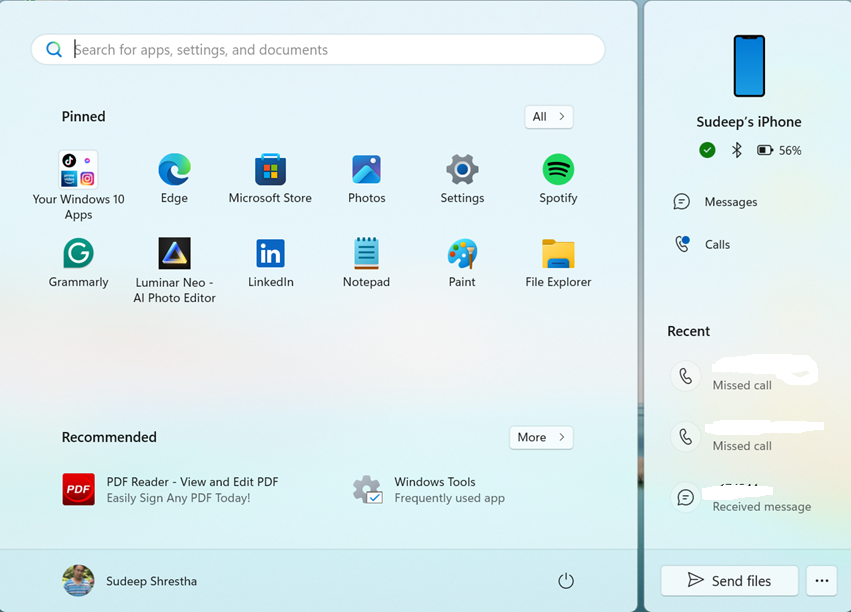
Once everything is connected, here’s how you can use it:
Send & Receive Text Messages
- Open Phone Link on Windows and head to the Messages tab.
- You can send and reply to SMS directly from your laptop keyboard.
Make & Receive Calls
- With Bluetooth connected, you can dial numbers or receive calls from your Windows PC.
- Audio goes through your laptop’s speakers/mic or a connected headset.
Check Notifications
- All iPhone notifications will now show up on your Windows screen.
- You can dismiss or respond without needing to grab your iPhone.
Share Files & Photos
- Drag and drop files between your iPhone and Windows PC.
- Quickly transfer photos, screenshots, and documents without emailing yourself.
Why This Matters
If you’ve been stuck in the Apple ecosystem just for the convenience of iPhone-Mac integration, this update is a breath of fresh air. Finally, Windows users can:
- Stay productive without switching between devices.
- Manage calls and texts directly from their laptop.
- Enjoy faster file sharing between iPhone and PC.
It’s not 100% as seamless as AirDrop or iMessage on a Mac, but it’s a big step forward for anyone who uses Windows + iPhone as their daily drivers.
Final Thoughts
Microsoft has finally closed the gap with Phone Link for iPhone. The setup is simple, and the functionality makes a huge difference for productivity. Whether you’re answering texts while working, making calls without reaching for your phone, or transferring files, this integration is worth setting up today.
If you’ve got an iPhone and a Windows laptop, give it a try—it might just change the way you use your devices every day.
Thank you so much for taking the time to read my blog post! Your support and engagement truly mean a lot and inspire me to keep creating and sharing more valuable content. If you enjoyed this post, I’d love to hear your thoughts—feel free to leave a comment in the box below and join the conversation. And if you’d like to stay updated with the latest posts, tips, and insights, don’t forget to subscribe to my newsletter. By joining, you’ll be the first to know when new content is published, so you never miss an update.