Deploying NGINX Proxy Manager in Your Homelab with Docker Compose on Ubuntu Server


Introduction
Managing multiple internal applications and websites within a homelab can quickly become a headache—especially when handling reverse proxies and SSL certificates manually. NGINX Proxy Manager (NPM) simplifies this process with an intuitive web UI, letting you create proxy hosts, manage SSL via Let's Encrypt, and configure access control with ease.
In this guide, you'll set up NPM using Docker Compose on Ubuntu Server
Prerequisites
Ensure your system meets the following requirements:
- Operating System: Ubuntu 22.04 (or newer)
- User Privileges: A user with
sudoaccess - Resources: 1GB+ RAM, 10GB+ disk space (adjust higher depending on your services) oldietech.com
- Installed Tools:
- Docker
- Docker Compose
- (Optional but recommended) A domain or subdomain, DNS pointing to your homelab’s public IP—essential for SSL via Let’s Encrypt HostMyCodeidroot
Step 1: Update System & Install Docker + Docker Compose
sudo apt update && sudo apt upgrade -y
Install Docker and Docker Compose
installing via script is also common:
curl -fsSL https://get.docker.com -o get-docker.sh && sudo sh get-docker.sh
Step 2: Create Project Directory
mkdir -p ~/nginx-proxy-managercd ~/nginx-proxy-manager
Step 3: Define docker-compose.yml
Create and open the file:
nano docker-compose.yml
Then paste the following configuration:
version: '3'
services:
  app:
    image: jc21/nginx-proxy-manager:latest
    restart: unless-stopped
    ports:
      - '80:80'      # HTTP
      - '443:443'    # HTTPS
      - '81:81'      # Admin Web UI
    volumes:
      - ./data:/data
      - ./letsencrypt:/etc/letsencrypt
  db:
    image: jc21/mariadb-aria:latest
    restart: unless-stopped
    environment:
      MYSQL_ROOT_PASSWORD: 'npm'
      MYSQL_DATABASE: 'npm'
      MYSQL_USER: 'npm'
      MYSQL_PASSWORD: 'npm'
    volumes:
      - ./data/mysql:/var/lib/mysql
This sets up two containers:
app: NPM’s reverse proxy UI.db: MariaDB for persistent configuration storage.
Step 4: Launch the Stack
docker compose up -d
This command pulls the images and spins up both containers in the background.
Check container status with:
docker ps
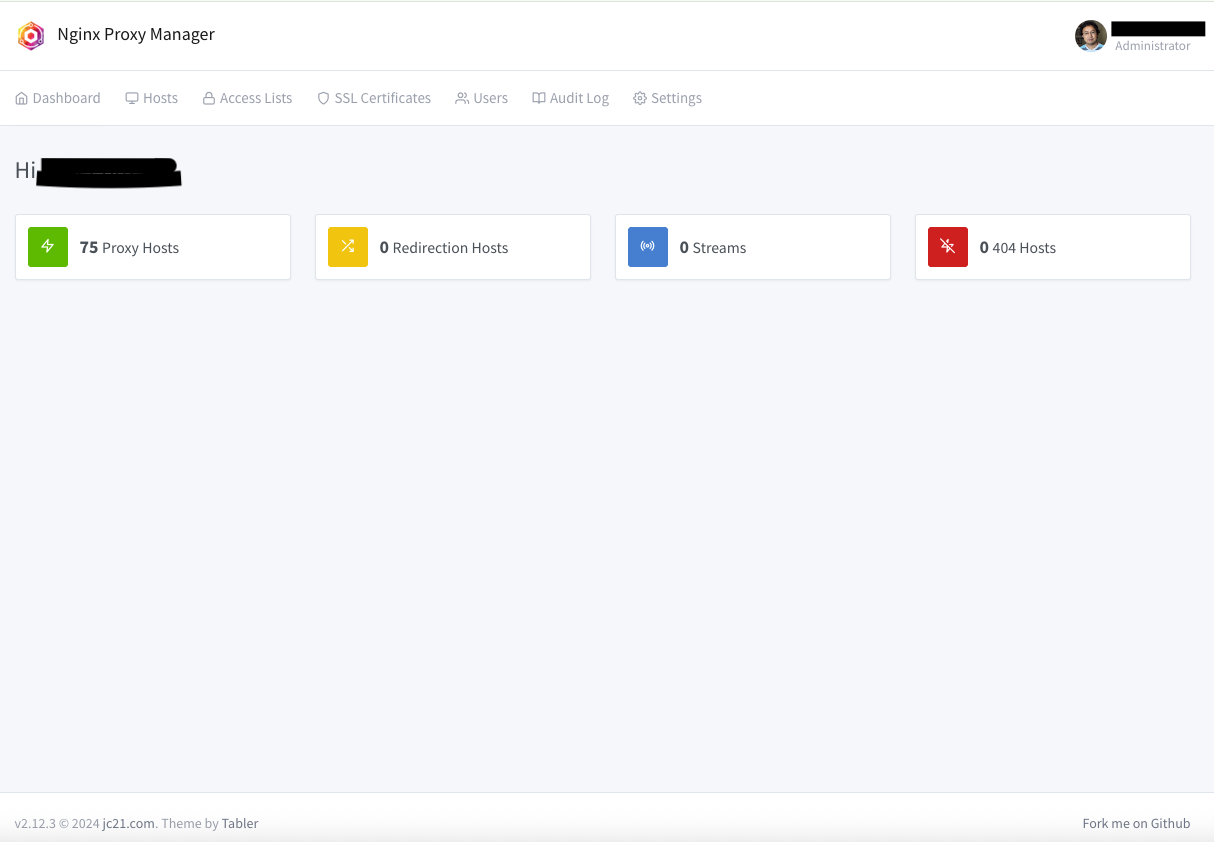
Step 5: Access Web UI & Initial Setup

Open your browser and navigate to:
http://<your-homelab-IP>:81
Log in with:
- Email:
[email protected] - Password:
changeme
You'll be prompted to update these immediately.
Step 6: Add a Proxy Host
- Go to Proxy Hosts → Add Proxy Host
- Enter domain/subdomain (e.g.,
app.home.lab) - Set Forwarding details (e.g., IP
192.168.1.100, port8080) - Enable "Block Common Exploits"
- Save the host
- Under the SSL tab:
- Choose Request a new SSL Certificate
- Check Force SSL
- Save to let Let’s Encrypt provision the cert automatically.
Step 7 (Optional): Access Control
- Navigate to Access Lists → Add Access List
- Create rules based on IP ranges or allowlists
- Apply the list to your Proxy Host—for improving internal security.
Step 8: Manage NPM
Basic Docker commands for managing NPM:
- Restart:
docker compose restart - Stop:
docker compose down - Update:
docker compose pull && docker compose up -d
Conclusion
You’ve now successfully deployed NGINX Proxy Manager in your homelab on Ubuntu Server using Docker Compose. From here, you can conveniently manage reverse proxies, automate SSL certificates, and secure access to your internal apps—all via a user-friendly dashboard.
Feel free to personalize the blog further—add screenshots, talk about common homelab use cases, or highlight your favorite features. Let me know if you'd like me to expand any section, include visuals, or tailor it for a different Ubuntu version!
Thank you so much for taking the time to read my blog! Your support and engagement truly mean a lot and inspire me to keep creating and sharing more valuable content. If you enjoyed this post, I’d love to hear your thoughts—feel free to leave a comment in the box below and join the conversation. And if you’d like to stay updated with the latest posts, tips, and insights, don’t forget to subscribe to my newsletter. By joining, you’ll be the first to know when new content is published, so you never miss an update.
Happy self-hosting!