Cockpit – A Web GUI Control Panel for Linux Server Management

Managing a Linux server is often done through the command line. While the CLI is powerful and flexible, it can sometimes feel overwhelming—especially if you’re new to Linux system administration or just want a quicker way to handle routine tasks. That’s where Cockpit comes in.
Cockpit is a lightweight, open-source, web-based graphical interface that lets you monitor and manage your Linux server from any modern web browser. Think of it as a control panel for your Linux system—without needing to memorize long commands or constantly SSH into your server.
What is Cockpit?
Cockpit is a server management tool developed by Red Hat. It provides a clean, intuitive web GUI that gives you real-time insights into your server’s performance and lets you manage key tasks with just a few clicks.
With Cockpit, you can:
- Monitor system performance (CPU, memory, disk usage, network activity)
- Manage system services (start, stop, enable, or disable services)
- Update your system packages
- Configure networking and firewall rules
- Manage user accounts
- View and analyze system logs
- Create and manage virtual machines (with libvirt integration)
- Manage storage, partitions, and RAID configurations
One of its biggest advantages is that Cockpit runs alongside your command line usage. If you make a change in Cockpit, it reflects immediately in your system—and if you configure something via the terminal, Cockpit shows it right away.
Why Use Cockpit?
- Ease of use: Perfect for beginners or admins who want a quick GUI to supplement their command-line workflow.
- Web-based access: Manage your Linux server from any device with a browser.
- Lightweight: Doesn’t use much system resources, unlike some heavier control panels.
- Real-time monitoring: CPU, memory, and network usage updates live without refreshing.
- Secure: Uses system credentials for authentication and integrates with existing Linux security.
Installing Cockpit
The installation process is straightforward and depends on your Linux distribution. Cockpit is included in most modern distros like Ubuntu, Debian, Fedora, CentOS, Rocky Linux, AlmaLinux, and others.
1. Install Cockpit on Ubuntu / Debian
Update your package list and install Cockpit:
sudo apt update
sudo apt install cockpit -y
Enable and start the Cockpit service:
sudo systemctl enable --now cockpit
2. Install Cockpit on CentOS / RHEL / Rocky / AlmaLinux
First, install Cockpit:
sudo dnf install cockpit -y
Enable and start the service:
sudo systemctl enable --now cockpit.socket
3. Accessing Cockpit

Once installed, Cockpit runs on port 9090.
Open your browser and go to:
https://your-server-ip:9090
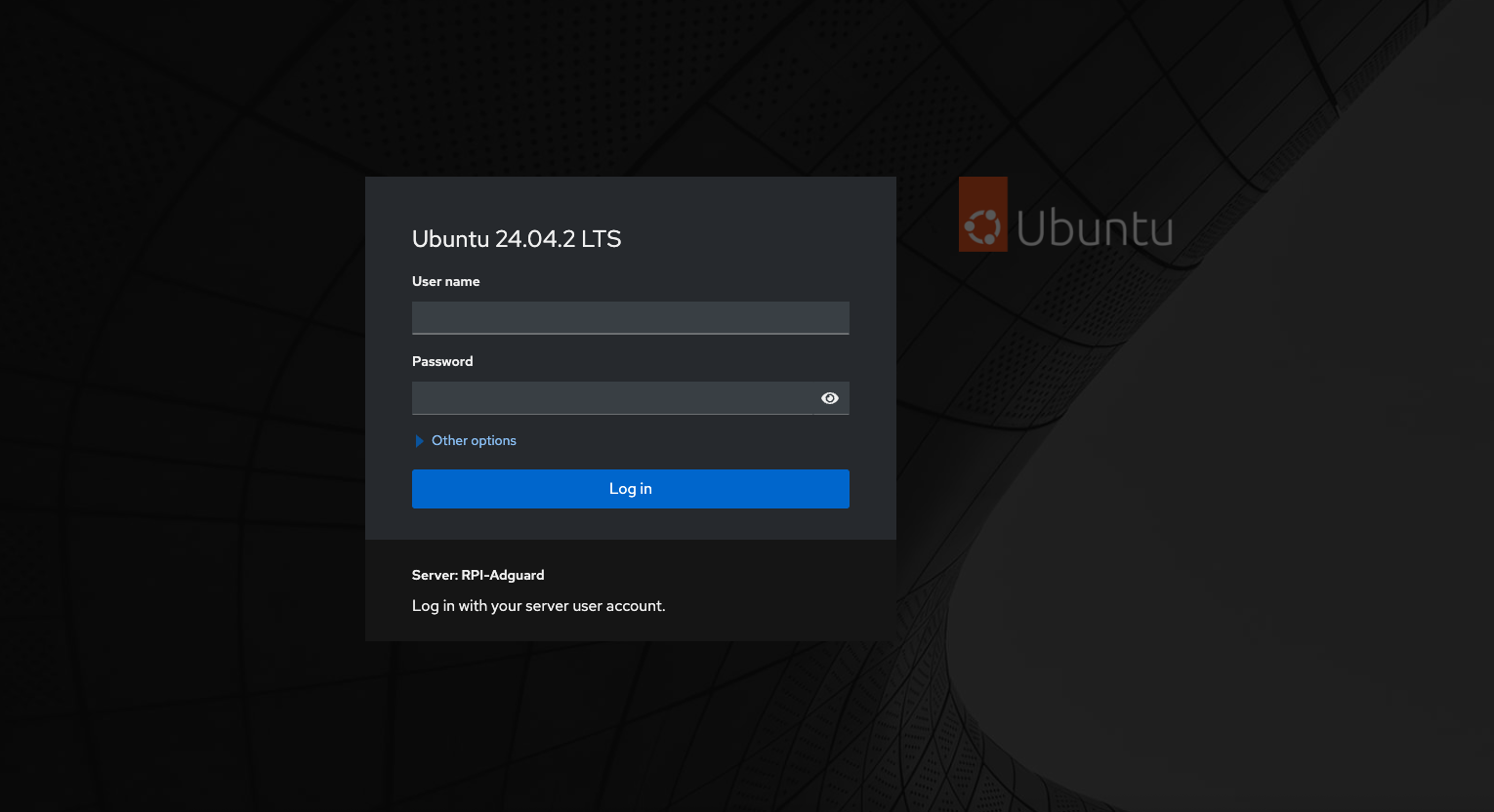
Log in with your Linux username and password. (Root or sudo users are recommended for full control.)
Example: Using Cockpit
- On the Dashboard, you’ll see CPU, memory, and network usage in real time.
- From the Services tab, you can manage running daemons like Apache, MySQL, or Docker.
- The Terminal tab even gives you a built-in web-based shell, so you can still run CLI commands when needed.
- If you’re running multiple servers, you can add them all inside Cockpit for centralized management.
 Sudeep Shrestha
Final Thoughts
Cockpit is an excellent tool for Linux administrators who want the flexibility of both CLI and GUI. Whether you’re managing a personal home server, a small business server, or multiple enterprise servers, Cockpit makes system administration simpler, more visual, and accessible from anywhere.
If you’re new to Linux, Cockpit can be your friendly gateway into server management. And if you’re an experienced admin, it can save you time on routine tasks while still letting you drop into the terminal when needed.
If you haven’t tried it yet, install Cockpit today and give your Linux server a modern, web-based control panel.
Thank you so much for taking the time to read my post! Your support and engagement truly mean a lot and inspire me to keep creating and sharing more valuable content. If you enjoyed this post, I’d love to hear your thoughts—feel free to leave a comment in the box below and join the conversation. And if you’d like to stay updated with the latest posts, tips, and insights, don’t forget to subscribe to my newsletter. By joining, you’ll be the first to know when new content is published, so you never miss an update.