Block Ads on Websites Using Your Own Self-Hosted DNS with AdGuard Home

If you’ve ever felt annoyed by constant ads, trackers, and pop-ups while browsing the web, you’re not alone. Beyond being distracting, ads and trackers often raise privacy and security concerns. Many companies harvest user data for targeted marketing, while malicious ads can even infect your system with malware.
A powerful way to take control of your browsing experience is to run your own DNS server at home. By using AdGuard Home, you can block ads, trackers, and unwanted connections directly at the DNS level—before they even reach your device.
In this post, I’ll walk you through why this approach works, how to set it up, and the benefits of having a self-hosted DNS server for your family and home network.
Why Block Ads with Your Own DNS Server?
Most ad-blocking solutions are browser extensions, but these only work on specific browsers. A DNS-based blocker like AdGuard Home filters requests across your entire network:
- ✅ Blocks ads and trackers on every device – smartphones, tablets, smart TVs, and even IoT devices.
- ✅ Improves privacy – stops third-party services from tracking your browsing habits.
- ✅ Speeds up browsing – fewer ads mean faster website load times.
- ✅ Centralized control – manage and monitor network activity in one place.
What is AdGuard Home?
AdGuard Home is an open-source, cross-platform network-wide ad blocker. Think of it as your personal Pi-hole alternative, with an easy-to-use web interface and rich features such as:
- DNS-based ad blocking
- Custom filtering rules
- Safe search enforcement
- Family protection (blocking adult sites)
- Encrypted DNS support (DNS-over-HTTPS, DNS-over-TLS)
Best of all, you can install it on a Raspberry Pi, Ubuntu server, or even Docker containers in your homelab.
Step 1: Install AdGuard Home
On Ubuntu/Debian
Run the following commands:
curl -s -S -L https://static.adguard.com/adguardhome/release/AdGuardHome_linux_amd64.tar.gz -o AdGuardHome.tar.gz
tar -xvzf AdGuardHome.tar.gzcd AdGuardHome
sudo ./AdGuardHome -s install
On Raspberry Pi (Recommended for Home Users)
The steps are similar, and the Pi makes a low-power, always-on solution.
Using Docker (Flexible Option)
If you prefer containers:
version: '3'
services:
  adguardhome:
    image: adguard/adguardhome
    container_name: adguardhome
    restart: unless-stopped
    ports:
      - "53:53/tcp"
      - "53:53/udp"
      - "80:80/tcp"
      - "3000:3000/tcp"
    volumes:
      - ./data:/opt/adguardhome/work
      - ./config:/opt/adguardhome/conf
Bring it up with:
docker compose up -d
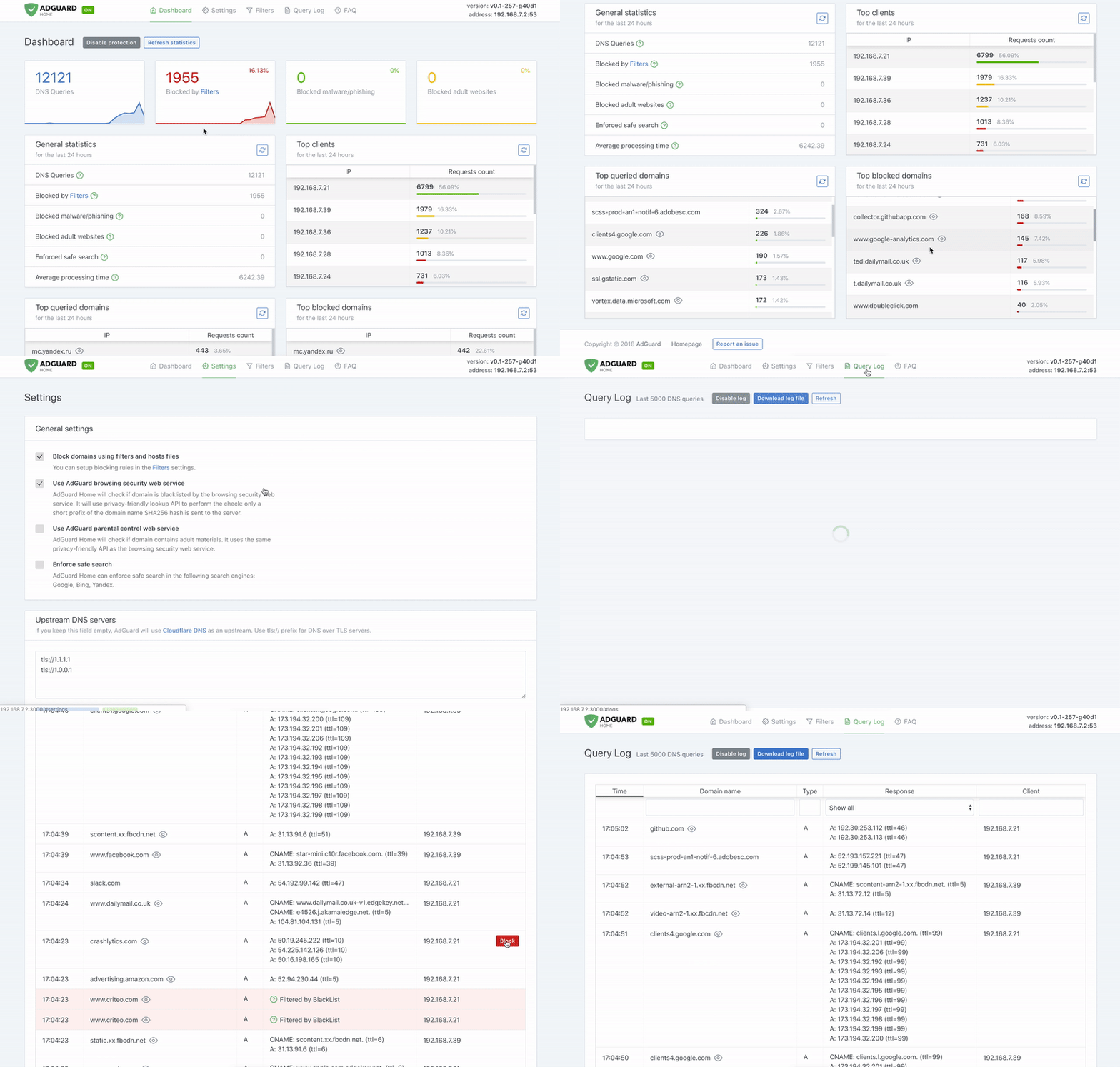
Once installed, AdGuard Home’s dashboard is available at:
👉 http://<your-server-ip>:3000
Step 2: Configure Your Devices
After installation:
- Set your router’s DNS server to point to your AdGuard Home server’s IP.
- This ensures all devices on your network automatically use it.
- Alternatively, configure DNS manually on specific devices (phones, PCs, etc.).
Step 3: Add Blocklists
AdGuard Home supports community-maintained blocklists. Some popular ones include:
- AdGuard’s default blocklist
- Steven Black’s hosts file
- OISD full list
Simply copy the list URLs into your AdGuard dashboard under Filters → DNS Blocklists.
Step 4: Enjoy a Cleaner, Safer Internet
Now, all requests go through your AdGuard server first. Ads, trackers, and malicious domains are blocked before they reach your device. You’ll notice:
- Faster page loads
- Cleaner apps and videos (especially on mobile & smart TVs)
- Improved privacy and peace of mind
Final Thoughts
Running AdGuard Home on your own network is one of the easiest and most effective ways to take back control of your online privacy. Unlike browser extensions, it protects every device in your household—without extra setup.
If you’re already running a homelab with Docker, Proxmox, or a Raspberry Pi, setting up AdGuard Home is a must-have project. It not only secures your browsing but also gives you complete control over your network traffic.
👉 Give it a try, and you’ll never want to browse without it again!
 Sudeep Shrestha
Thank you so much for taking the time to read my blog! Your support and engagement truly mean a lot and inspire me to keep creating and sharing more valuable content. If you enjoyed this post, I’d love to hear your thoughts—feel free to leave a comment in the box below and join the conversation. And if you’d like to stay updated with the latest posts, tips, and insights, don’t forget to subscribe to my newsletter. By joining, you’ll be the first to know when new content is published, so you never miss an update.